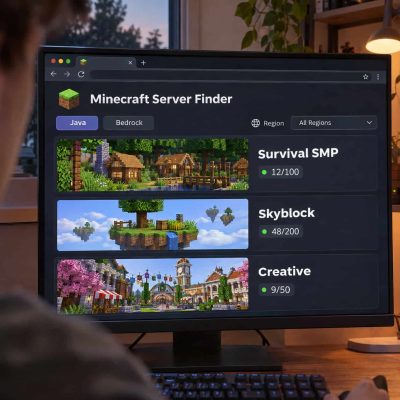
How to Use a Minecraft Multiplayer Server Finder to Find Your Next Server
A Minecraft multiplayer server finder can help you discover a quiet survival world, a busy minigame network, or a creative server where you can build with friends. Start with Minecraft’s official server list and check which servers support your edition, device, and
game version. Then narrow your options by region, game mode, and how many players are usually online. Shortlist three servers so you can compare them and still have time to play.
Choose Java or Bedrock Edition
Check which edition everyone in your group uses. Java Edition players should start with Java listings. If you play Bedrock Edition on a phone, tablet, or Windows PC, look for a Bedrock address and port. Some Java servers use Geyser to accept Bedrock players, so look for listings that explicitly support both editions. Check the instructions for each edition before sharing an address with friends.
If anyone plays on a console, check the in-game Servers tab early. The standard console interface offers featured servers, while Bedrock on computers and mobile devices lets you add custom addresses. A website may label a server “Bedrock” even if it’s unavailable through your console’s server menu.
Match Your Game Version
Compare the version shown in your game or launcher with the versions the listing says it accepts. Some servers let players connect from several releases. If a listing shows a range, check the server’s own instructions for the recommended version, especially if you want to use features from a particular update. Being able to log in with a newer client still leaves the world and its features up to the server.
For a modded Java server, check the required modpack, its release, and the mod loader, such as Fabric or NeoForge. Two servers can use the same Minecraft release and require different setups. If your group wants to join with a standard installation, look for vanilla servers or listings that say players can connect without installing client mods.
Filter by Region and Test the Connection
Start with servers hosted near the people who will play most often. If the finder offers a country or region filter, use it to build your shortlist. If a listing only shows a community’s language or where its members live, check the server description for the actual hosting location. For friends spread across regions, have each person test the same finalists. A server that feels smooth to one player may lag for another. Compare notes before committing together.
Test during your usual play hours. Open a chest, break a few blocks, or play a short match. If movement repeatedly snaps backward or interactions take noticeably longer than on another server, try your next candidate. A connection that feels fine while building may still feel sluggish during combat.
Pick a Game Mode and Read the Rules
Filter for the activity you want to spend the most time on. Choose survival multiplayer, often labeled SMP, if you want to gather resources and build in a shared world. Try creative if you want to focus on building, Skyblock if you like progressing from limited resources, or minigames if you prefer short, repeatable rounds. Use the search box for details such as land claims, peaceful play, or roleplay.
Open each promising listing and read the rules. Two survival servers can offer very different experiences. One might protect claimed builds and restrict player combat, while another allows raids. If you plan to build something over several months, check how often the world resets. If you want to play tonight, check whether an allowlist requires you to apply before joining.
Check How Many People Actually Play
Read the online count alongside the player limit. A listing that shows 12/100 gives you a snapshot of who’s online and how many slots the server advertises. Check again on a few evenings or weekends when you’d normally play. If a network offers several modes, look for the population of the specific mode you want. A crowded lobby can lead to a quiet survival world.
Think about what you want from other players. A small group can make it easier to recognize regulars and organize shared builds. A busier server may offer faster minigame queues or more trading partners. During a visit, see whether newcomers get answers, whether the rules are easy to find, and whether moderators are reachable.
Join Your Shortlist and Play a Session
Confirm the address on the server’s own page. In Java Edition, open Multiplayer and choose Add Server to save it or Direct Connection to try it once. On Bedrock for computer or mobile, open Play, then Servers, choose Add Server, and enter the listed address and port.
Give your top candidates a similar trial. Spend fifteen minutes doing what brought you there, whether that means claiming land, playing two rounds, or finding a plot for a build. Go back during your next normal play window and see who’s around. If the connection holds up, the rules suit your plans, and people are active when you log in, save the server and share its joining details with your group.